

6 Quick Tips for Google Sheets to Boost Your Productivity
Google Sheets, a powerful web-based spreadsheet tool, offers a plethora of features beyond basic data entry and calculations. Here are six quick tips to enhance your Google Sheets experience and streamline your workflow.
1. Clean up your data
Ensure data consistency and accuracy by utilizing the “Data cleanup” tool. Access it from the top menu by clicking `Data > Data cleanup > Cleanup suggestions`. This feature analyzes your spreadsheet, providing suggestions to enhance its appearance and performance, such as formatting numbers and eliminating duplicate entries.
!Data Cleanup in Google Sheets

2. Navigate your spreadsheet faster with named ranges
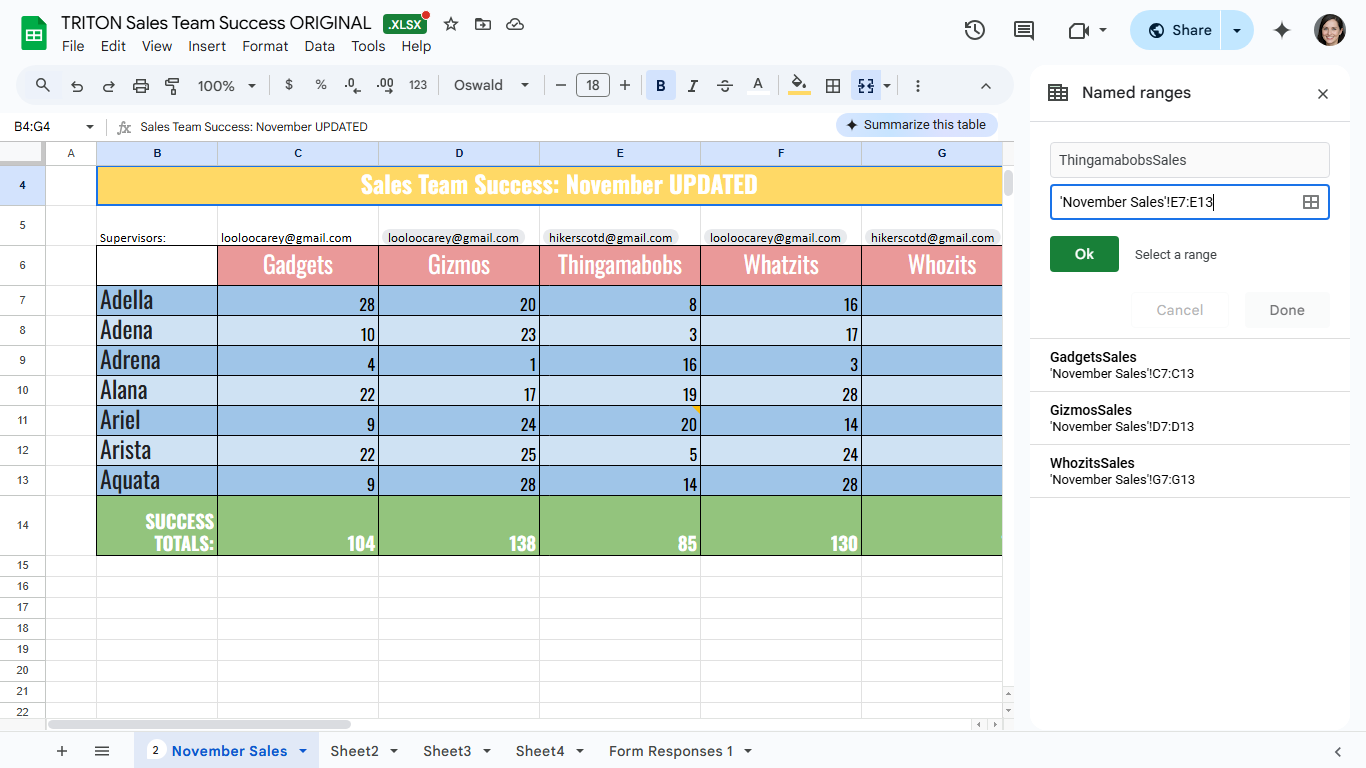
Efficiently manage large spreadsheets by creating named ranges. Simply click `Data > Named ranges` or select `Manage named ranges` from the top-left corner. Assign names to specific cells or cell ranges to swiftly navigate your spreadsheet.
!Named Ranges in Google Sheets
3. Add contacts or calendar events to your spreadsheet
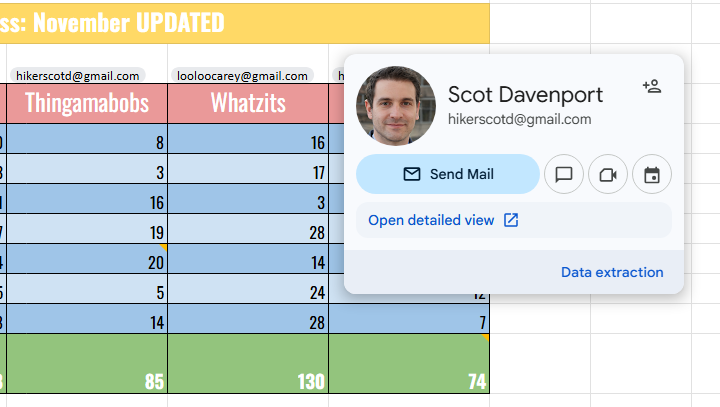
Enhance collaboration by inserting mini profiles from Google contacts into cells. Type `@` in a cell to access your contacts and select the relevant person. This feature enables quick communication and coordination directly from your spreadsheet.
!Contact Card in Google Sheets
4. Use dropdowns for guided responses
Streamline data entry and reduce errors by incorporating dropdown lists. Create preset options for users to select from, ensuring standardized input and improved data quality.
!Dropdown List in Google Sheets

5. Zero in on key data with filters and slicers
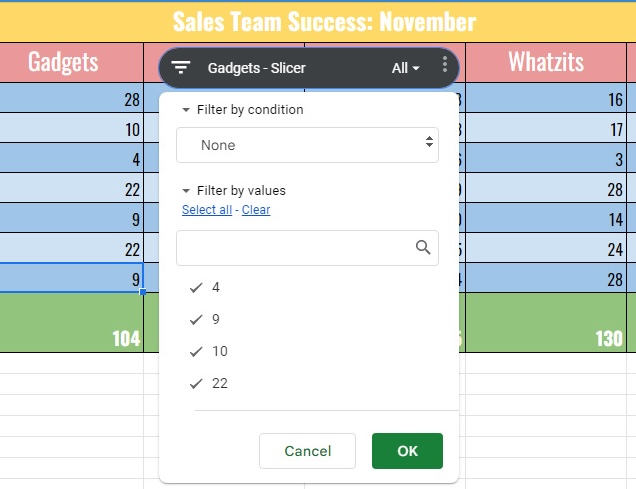
Simplify data analysis by applying filters to focus on specific information within your spreadsheet. Additionally, utilize slicers to enable interactive filtering options for viewers, enhancing data visibility and understanding.
!Slicer Toolbar in Google Sheets
6. Present your spreadsheet in Google Meet
Facilitate collaboration and feedback by sharing your spreadsheet during a Google Meet session. Integrate your spreadsheet seamlessly into meetings for real-time discussions and reviews.
By implementing these six tips, you can harness the full potential of Google Sheets and optimize your workflow for increased efficiency and productivity. Experiment with these features to discover new ways to enhance your spreadsheet management skills.